Showing posts with label Blocking. Show all posts
Ed F8

How to Unblock Someone on Facebook | Unblocking People on FB App & Browsers

How to Unblock Someone on Facebook | Blocking People on FB App & Browsers: This guide will help you to unblock anyone you desire to unblock from your blocked list. First and foremost, you will need to login to your account and access your blocked list.

How to Unblock Someone on Facebook | Unblocking People on FB App & Browsers


How Can I Unblock Someone on FacebookTo unblock someone you blocked, you should login to your Facebook account.

At the top right of your account, you'll find the the question sign (Quick Help).


Next, go to Privacy Shortcuts
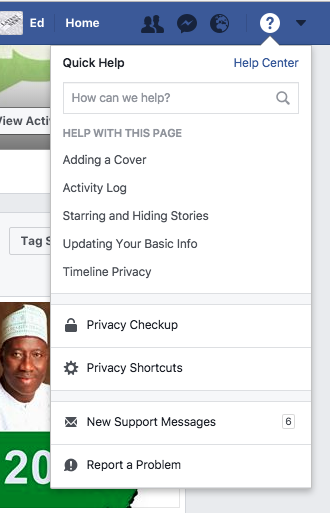


Tap on how do I stop someone from bothering me?
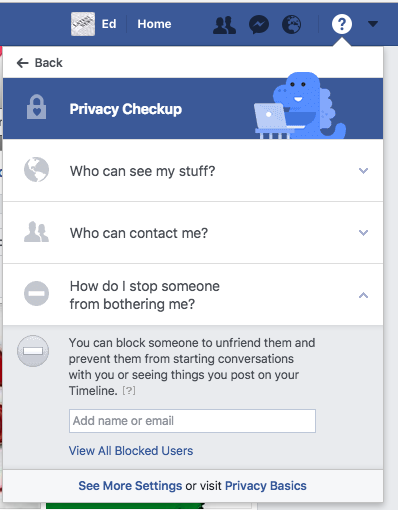


Click on View all Blocked users.
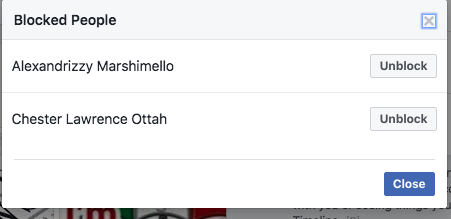


Locate the person you wish to unblock and tap on unblock by the side - next to the persons name.

See:


How to Unblock a Facebook User on Android Device


Click on More Button >> Account Settings >> Blocking >> Tap on Blocked User.


That's all.


Please share this article with friends who might need it!
Read More
Ed F8

Block someone on Facebook Messenger | Blocking Annoying FB Users

Block someone on Facebook Messenger | Blocking Annoying FB Users: We all have at least one friend who keeps sending trashy messages, pictures, GIF's and videos and you are really getting tired of seeing all those messages he/she sends. As a lady, we all have that admirer who wouldn't quit badgering you with romantic messages or requests for nude pictures, its getting on your nerves and you just want to put a stop to it because, frankly, it is grating on your nerves. Read How Can I Go Live on Facebook?

The good news is, you can block that person on Facebook messenger without blocking him as a friend. Superb, right?

Block someone on Facebook Messenger


This step-by-step guide will show you exactly how to do it, so stick along for the ride!

HOW TO BLOCK SOMEONE ON FACEBOOK MESSENGER

To block someone on Facebook messenger:
1. Open your Facebook messenger application
2. Scroll down to the person's conversation you want to block
3. Tap the conversation and hold
4. On the screen that pops up, tap on Block
5. On the screen that pops up, you will get a prompt asking you to ''Block all messages'', tap on it
6. Next, tap on any part of the screen apart from the prompt asking you to ''Unblock all messages''.

Easy peachy! Go ahead and block that pesky and annoying Facebook friend on your Facebook messenger and get back your peace of mind.


Remember: Blocking someone on Facebook messenger app doesn't mean you have blocked the person on Facebook entirely, the person is still your friend. To block someone entirely on Facebook, click on this link: How to Block a Facebook Friend.
Read More
Ed F8

Blocking And Unblocking Friends on Facebook 2017 Plus Video Tutorial

Blocking And Unblocking Friends on Facebook 2017 Plus Video Tutorial: Are you sick and tired of some friends or you have settled your score with a friend and you want to get along. This guide is gonna help you on how to go about blocking and unblocking Facebook users.

Note: Blocking a friend will automatically unfriend the person. Unblocking on a friend does not automatically add the person to your friends list.

So, if you want to unblock a user and wants the person to appear on your friends list - you should send them a new friend request.


Blocking And Unblocking Friends on Facebook 2017 Plus Video Tutorial


Attached below is a video explaining how to block and unblock a person.

Don't worry, this is the latest Facebook settings for blocking and unblocking users.

Read: Did you block friends? View your Facebook blocked


Please share this article with your Facebook friends.
Read More